

Description
Your store never sleeps. Neither does MaxSellora.
Most visitors leave without buying — not because they don’t want to,
but because they couldn’t find what they needed fast enough.
MaxSellora fixes that.
A smart AI assistant pops up at the right moment, answers questions
instantly, recommends the perfect product, and guides the visitor
straight to checkout — just like your best salesperson would.
Except it works 24/7, replies in your customer’s language, and never has a bad day.
💬 “It’s like having a sales rep on every product page, at the same time, for free.”
🚀 One-click setup. Zero configuration.
Install the plugin, connect your store, done. MaxSellora reads your
WooCommerce catalog automatically — no manual setup, no complicated
settings, no developer needed.
🆓 Start free. Grow when you’re ready.
No credit card. No time limit. Activate the Free plan with one click
and get 10 AI-powered messages to try the assistant — or skip AI entirely
and use MaxSellora as a free live-chat platform for your store.
Turn on Operators-only mode (Settings Features) and every chat goes
to your team with no AI message quota and no paid subscription required.
You still get the full operator toolkit: live inbox, Telegram & Slack bots,
email alerts, multi-language widget, and more — all on the free plan.
When you’re ready for AI, leave Operators-only off or upgrade for higher
message limits. You choose how much automation your store needs.
🧠 Sells like a human. Scales like a machine.
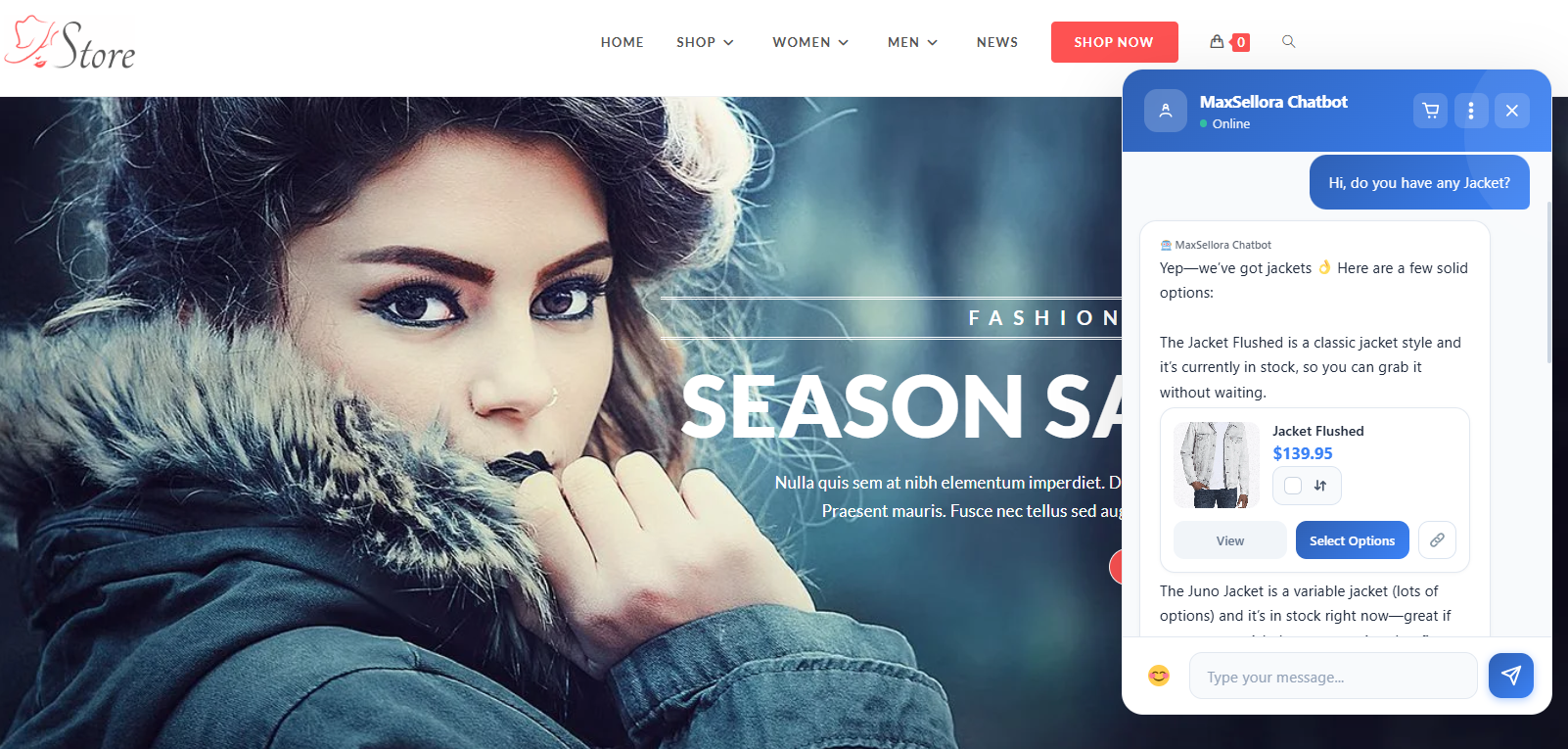
- Understands natural language — customers type like they talk
- Recommends products based on what the customer actually needs
- Compares items side by side on request
- Checks real-time stock availability
- Tracks order status and shipping instantly
- Adds products to cart directly from the chat
💡 Why stores love MaxSellora
✅ Reduce bounce rate — engage visitors before they leave
✅ Increase average order value — smart upsell & cross-sell suggestions
✅ Cut support tickets — AI handles the common questions
✅ Never miss a sale — active 24/7, even when you sleep
✅ Voice chat — customers can speak instead of type, and hear the answer spoken back
✅ Operators-only mode — turn off AI replies entirely; every chat goes straight to your human team
✅ Guest contact form toggle (NEW) — choose whether visitors see a name/email step before chatting
✅ Live chat handoff — human operator takeover when needed
✅ Telegram operator bot — reply to customers and manage live chats from Telegram
✅ Slack operator bot — same live-chat inbox and notifications in Slack
✅ Fully responsive chat widget — opens fullscreen on mobile with a clear minimize button; no layout or overflow issues on phones and tablets
✅ GDPR-friendly privacy integration
🤖 AI Capabilities
Customers can ask things like:
- “Which product is best for beginners?”
- “What’s the difference between these two products?”
- “Is this item in stock?”
- “Where is my order?”
- “Can you recommend something cheaper?”
The AI automatically uses your WooCommerce product catalog to provide
accurate answers and recommendations.
🌍 Multi-language, out of the box
MaxSellora detects the language your visitor writes or speaks and replies in that same language — French, Spanish, Turkish, Chinese, Portuguese, and many more. There is no fixed “four language” limit on AI answers.
- AI chat — auto-detects each message and responds in the customer’s language (typed or voice)
- Voice chat — OpenAI Whisper recognizes 99+ spoken languages with no extra setup
- Widget UI — buttons, placeholders, and chrome translated for English · Persian (Farsi) · Arabic · German (from your WordPress locale; other locales use English labels while the AI still answers in the visitor’s language)
🎙️ NEW: Voice Chat — let customers talk, not type
Some shoppers would rather speak than type — especially on mobile.
With AI Voice Chat, your customer just taps the microphone, asks
out loud, and MaxSellora listens, understands, and answers back in a
warm, natural voice. It’s the closest thing to a real conversation
with your best salesperson.
- 🎤 Tap-to-talk microphone built right into the chat widget
- 🗣️ Speech-to-text powered by OpenAI Whisper — auto-detects 99+ languages, no setup
- 🔊 Lifelike spoken replies (OpenAI text-to-speech)
- ▶️ A real audio player on every voice message — play, pause, and scrub back and forth
- 📱 Hands-free and accessibility-friendly, perfect for mobile shoppers
- 📲 Fully responsive widget — on phones the chat opens edge-to-edge (fullscreen) for easy reading and typing, with a prominent minimize control to return to the store
- 🎚️ One simple toggle to enable — WooCommerce MaxSellora Settings Voice Chat
Voice chat is off by default, so you’re always in control. Flip the
switch whenever you’re ready to give your store a voice.
👥 Operators-only mode — AI off, humans only
Sometimes you want every conversation handled by your team — no AI at all.
With Operators-only mode, new chats skip the AI assistant from the
first message and go straight to your human operators.
- 🚫 AI never replies while this mode is on
- 👤 Every new chat starts in the operator queue immediately
- 🔒 Customers cannot switch back to AI from the widget
- 🎙️ Voice chat is disabled automatically in this mode
- ⚙️ One toggle in WooCommerce MaxSellora Settings Features
- 🔄 Same setting in your MaxSellora dashboard (Settings) — stays in sync with WordPress when connected
Operators-only mode is off by default. Enable it when you want live
support only — for example during a sale, a product launch, or whenever
your team prefers to handle every shopper personally.
Use it for free, forever: You do not need to buy a paid plan. On the
free MaxSellora account, enable Operators-only mode and your store gets a
professional live-chat widget plus operator tools (dashboard inbox,
Telegram Mini App, Slack, notifications, and handoff controls) without
consuming AI credits or paying for an AI subscription.
Plans & Pricing
- Demo mode — For testing only. Runs in mock mode on your server;
no data is sent to the API and no real AI is involved. - Free plan — 10 AI-powered messages included (lifetime total), or
unlimited human-only live chat when Operators-only mode is enabled
(AI off). No paid upgrade required for operator-only use. - Paid plans — Higher or unlimited AI message quotas. Manage from
your dashboard at https://woocommerce.chatbot.shop-aiplugin.com.
Human Operator Support (all plans — free with Operators-only mode)
Operators can initiate a chat with any customer at any time, or
customers can request a human at any point. When an AI plan limit
is reached, the chat is handed off automatically — no customer is
ever left without support.
With Operators-only mode enabled from day one, you run a complete
live-support setup on the free plan: storefront chat widget, operator
inbox, Telegram bot & Mini App, Slack integration, and new-chat email
alerts — without using AI or buying a paid subscription.
Manage operators, roles, and live conversations from your MaxSellora
dashboard at https://woocommerce.chatbot.shop-aiplugin.com.
Telegram operator bot
Connect your team to the official MaxSellora Telegram bot
(@MaxSellorabot) so operators can work without keeping the
dashboard open:
- Instant alerts when a shopper starts a new chat or requests a human
- View the same conversation list and message history as the web inbox
- Reply to customers directly from Telegram
- Take over a chat from AI or hand it back to AI with inline actions
- Link each operator’s Telegram user ID in Operators (dashboard)
Slack operator bot
If your store runs on Slack, operators can use the same live-chat
workflow there:
- Notifications for new chats and human-handoff requests
- Browse and open customer conversations from Slack
- Send operator replies without leaving Slack
- Link each operator’s Slack member ID in Operators (dashboard)
Telegram and Slack are optional — the web dashboard inbox always
works. Configure operator IDs and notification preferences per team
member in the MaxSellora panel.
Requirements
- WordPress 6.0 or higher
- WooCommerce 8.0 or higher
- PHP 8.0 or higher
External Services
This plugin sends data to one external API endpoint.
Endpoint:
https://woocommerce.chatbot.shop-aiplugin.com
Data sent:
* Chat message text
* Session identifier (stored in browser localStorage)
* Page URL
* Visitor IP address
* Customer name and email (when provided in the guest form or from a logged-in WooCommerce account)
* Voice recordings — only when Voice Chat is enabled and the visitor records a message; the audio is sent for speech-to-text transcription, and the AI reply text is sent back for text-to-speech
* WooCommerce product data (title, description, price, stock, SKU, categories, attributes, gallery URLs, language) — sent only when the merchant runs Reindex Products or saves a product
When data is sent:
* Only when a visitor sends a chat message while the widget is active
* Only when the merchant manually triggers a product reindex
* No data is ever sent in Demo mode
Privacy policy: https://shop-aiplugin.com/privacy
Terms of service: https://shop-aiplugin.com/terms
Privacy
What personal data does this plugin collect?
The plugin does not store visitor data in your WordPress database. When a visitor uses the chat widget, the following data may be transmitted to https://woocommerce.chatbot.shop-aiplugin.com: chat message text, page URL, visitor IP address, optionally the customer’s name and email (from the guest form or a logged-in WooCommerce account), and a session identifier stored in the browser’s localStorage.
In Demo mode, no data is transmitted anywhere.
What about WooCommerce product data?
When the merchant runs Reindex Products (or saves a product while the plugin is connected), the plugin sends WooCommerce product data — title, description, price, stock, SKU, categories, attributes, gallery URLs, and language — to the MaxSellora API so the assistant can answer product questions accurately.
How do I declare this in my privacy policy?
The plugin automatically registers a suggested privacy snippet via wp_add_privacy_policy_content(). You can copy it into your site’s privacy policy from Tools Privacy Policy Guide. The full upstream policy is at https://shop-aiplugin.com/privacy.
How do I delete a customer’s chat history?
The merchant can remove conversations from the MaxSellora dashboard (Conversations Delete). This covers GDPR right-to-erasure requests. Deactivating the plugin immediately stops all further data transmission.
License and Legal
This plugin is licensed under GPLv2 or later and is fully GPL-compatible. The MaxSellora SaaS backend is a proprietary service governed by the Terms of Service at https://shop-aiplugin.com/terms.
Screenshots
 → MaxSellora” class=”wp-image-9000002″ srcset=”https://i0.wp.com/ps.w.org/maxsellora/assets/screenshot-2.png?rev=3558049&w=300 300w, https://i0.wp.com/ps.w.org/maxsellora/assets/screenshot-2.png?rev=3558049&w=600 600w, https://i0.wp.com/ps.w.org/maxsellora/assets/screenshot-2.png?rev=3558049&w=900 900w” sizes=”(max-width: 599px) 50vw, 33vw” width=”1035″ height=”867″ loading=”eager” fetchpriority=”high” decoding=”async”/>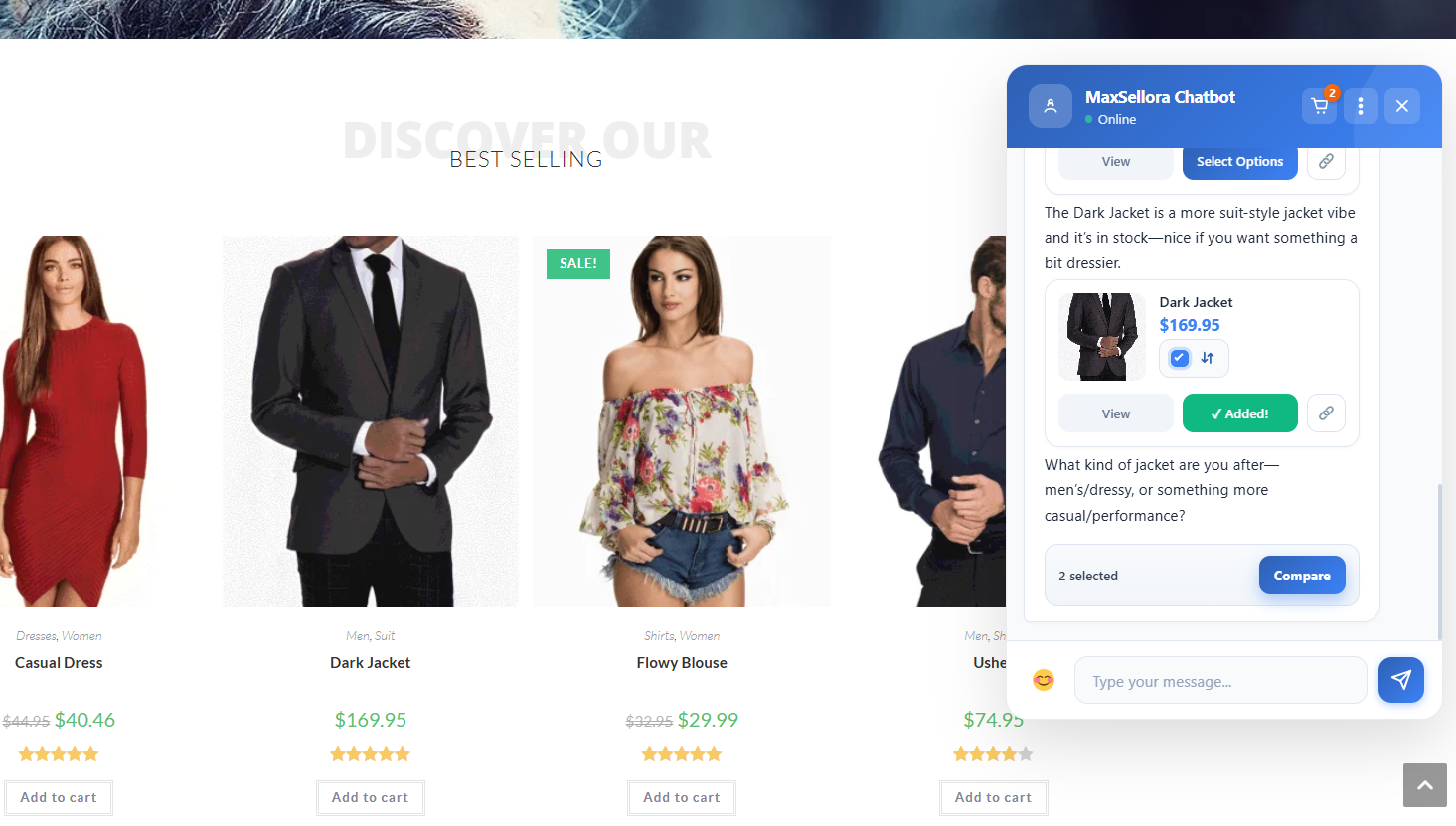
Installation
- Upload the
maxsellorafolder to/wp-content/plugins/or install through the WordPress plugin installer. - Activate the plugin through the Plugins menu.
- Go to WooCommerce MaxSellora.
Recommended — Automatic setup (Free plan):
Click Activate Free Plan. The plugin configures itself automatically: API connection, dashboard link, and WooCommerce REST API keys are all set up without any manual steps. When your free plan messages are used up, simply purchase a paid plan from your MaxSellora dashboard — all existing settings carry over and everything keeps working with no reconfiguration needed.
Alternative — Manual setup:
If you prefer to configure the connection yourself, follow these steps:
- Create an Account — Go to the MaxSellora registration page at https://woocommerce.chatbot.shop-aiplugin.com and create your admin account. This will be your main dashboard login.
- Add a Store — Navigate to Stores in the sidebar and click Add Store. Fill in your store name and WooCommerce credentials.
- Get WooCommerce API Keys — In your WordPress admin, go to WooCommerce Settings Advanced REST API. Click Add Key, set permissions to Read/Write, and copy the Consumer Key and Consumer Secret.
- Generate a MaxSellora API Key — In the MaxSellora dashboard, go to API Keys and create a new key for your store. Copy it — you will need it in the next step.
- Configure the Plugin — In WordPress admin, go to WooCommerce MaxSellora. Enter the API Key from step 4
- Click Save Changes, then Test Connection.
- Index Your Products — Click Reindex Products in the plugin settings to sync your WooCommerce catalog with the AI engine.
Tip: After adding new products to WooCommerce, click Reindex Products again to keep the AI’s knowledge base up to date.
To try the plugin before signing up, enable Demo mode from WooCommerce MaxSellora. Demo mode runs entirely on your server — no data is sent anywhere.
FAQ
-
What is Demo mode?
-
Demo mode is for testing only — not a preview of real AI features.
Responses are pre-defined and run locally on your server.
No data is sent externally, and no actual AI is involved.To experience real product recommendations, order tracking, and
AI-powered chat, activate the Free plan — no credit card needed. -
What is included in the Free plan?
-
The Free plan includes 10 AI-powered messages in total (lifetime). Once that limit is reached, all new conversations are automatically routed to your human operators. You can upgrade at any time from your MaxSellora dashboard.
-
What happens when an AI plan limit is reached?
-
The customer is seamlessly transferred to a human operator. No error is shown and no conversation is dropped. If no operator is online, the customer sees your configured offline message.
-
Do I need an account to use the plugin?
-
You need a MaxSellora account to use AI features and human operator management. Demo mode is available without an account. Sign up and connect your store from WooCommerce MaxSellora.
-
Can I customize the chat widget?
-
Yes. Under WooCommerce MaxSellora you can change the widget color and position (bottom-left or bottom-right).
-
Is the chat widget responsive on mobile?
-
Yes. The storefront widget is fully responsive. On phones and small screens it opens in a fullscreen layout so messages, product cards, and the input area are easy to use; a clear minimize button closes the chat and brings back the floating launcher so shoppers can reopen it anytime.
-
Does it support multiple languages?
-
Yes. The AI assistant auto-detects the language of each customer message and responds in that language — shoppers can write (or speak, with Voice Chat) in virtually any language, not just a short preset list.
The storefront widget UI (buttons, placeholders, and similar chrome) is translated for English, Persian (Farsi), Arabic, and German based on your WordPress locale. On other locales, widget labels fall back to English while AI replies still match the customer’s language.
-
Can customers talk to the chatbot with their voice?
-
Yes — that’s AI Voice Chat. When you enable it from WooCommerce MaxSellora Settings Voice Chat, a microphone button appears in the widget. Shoppers tap it to record a question; MaxSellora transcribes it (OpenAI Whisper, 99+ languages auto-detected), answers, and speaks the reply back with a natural voice. Every voice message includes a built-in audio player with play, pause, and seek. The button only appears on browsers that support microphone recording, and each voice exchange uses 3 plan credits (a typed message uses 1). Voice chat is not available when Operators-only mode is enabled.
-
Can I use MaxSellora for free without buying a paid plan?
-
Yes. Activate the Free plan (one click, no credit card). If you enable
Operators-only mode, the AI stays off and your team handles every chat —
this does not use your 10 AI messages and does not require a paid
subscription. You still get the live chat widget, operator dashboard, Telegram
bot & Mini App, Slack integration, and notification options. Paid plans are
only needed if you want AI to answer customers automatically at higher volume. -
Can I disable AI and use only human operators?
-
Yes. Enable Operators-only mode from WooCommerce MaxSellora Settings Features, or from Settings in your MaxSellora dashboard. When active, the AI assistant does not reply — new chats are routed to your operators from the start. Customers cannot switch back to AI, and voice chat is disabled. The setting syncs between WordPress and the dashboard when your store is connected. This works on the free plan with no paid upgrade required.
-
Can I let visitors chat without filling in name and email first?
-
Yes. The Guest contact form is on by default — first-time guests see a short name/email step before chatting. To skip that and let visitors start typing immediately, turn it off from WooCommerce MaxSellora Settings Features, or from Settings in your MaxSellora dashboard. The toggle syncs between WordPress and the dashboard when your store is connected. Logged-in WooCommerce customers never see the form; their account details are used instead.
-
How do I sync products?
-
Go to WooCommerce MaxSellora and click Reindex Products.
-
How do I add human operators?
-
Log in to your MaxSellora dashboard at https://woocommerce.chatbot.shop-aiplugin.com, go to Operators, and add your team members. Operators can chat with customers at any time from the dashboard.
-
Can operators use Telegram or Slack?
-
Yes. In the dashboard Operators screen, add each person’s Telegram user ID and/or Slack member ID and enable notifications. They can then receive alerts and reply to shoppers from Telegram (@MaxSellorabot) or Slack, with the same take-over and hand-back controls as the web inbox.
Reviews

Contributors & Developers
“MaxSellora – AI Sales Assistant & Chatbot for WooCommerce” is open source software. The following people have contributed to this plugin.
Contributors
Translate “MaxSellora – AI Sales Assistant & Chatbot for WooCommerce” into your language.
Interested in development?
Browse the code, check out the SVN repository, or subscribe to the development log by RSS.
Changelog
1.2.9
- Fix: Fixed several bugs.
1.2.8
- Added: Guest contact form toggle — control whether visitors must complete a short name/email step before their first chat message. On by default (same behaviour as before); turn it off in WooCommerce MaxSellora Settings Features to let guests chat instantly without the form. The setting syncs with Settings in the MaxSellora dashboard when your store is connected. Logged-in WooCommerce customers skip the form automatically.
1.2.7
- Fix: Fixed several bugs.
1.2.6
- Added: Operators-only mode — disable AI replies entirely so every new chat goes straight to human operators from the first message. Toggle in WooCommerce MaxSellora Settings Features or in the MaxSellora dashboard Settings; both stay in sync when connected. Customers cannot switch back to AI while this mode is on, and voice chat is disabled automatically. Use it on the free plan for unlimited human-only live chat without a paid subscription.
- Fix: Telegram Mini App inbox — scrolling up to read older messages no longer jumps back to the bottom on every refresh; auto-scroll only when you are already at the bottom or when you send a new reply.
1.2.5
- Fix: Fixed several bugs.
1.2.4
- Improved: Fully responsive mobile chat widget — on phones and tablets the chat opens fullscreen for a complete, easy-to-use layout; added a prominent minimize button, safe-area support for notched devices, and scroll locking so the store page stays put behind the chat. Responsive layout issues on mobile are resolved.
1.2.3
- Fix: Improved voice language detection accuracy and correctly identifies the spoken language.
1.2.2
- Fix: Fixed several bugs.
1.2.1
- Fix: Fixed several bugs.
1.2.0
- Added: AI Voice Chat — customers can speak their questions and hear spoken replies. Includes a tap-to-talk mic in the widget, OpenAI Whisper speech-to-text (99+ languages, auto-detected), natural text-to-speech replies, and a built-in audio player (play/pause/seek) on every voice message. Enable it from Settings Voice Chat (off by default).
1.1.0
- Fix: Plan Usage tab shows a readable billing period (e.g. May 31, 2026 – Jun 30, 2026) instead of internal period keys.
- Docs: Documented Telegram and Slack operator bots in plugin readme.
1.0.9
- Added: Added automatic synchronization: products are now instantly synced with the plugin when a product is created or updated in WooCommerce.
1.0.8
- Added: Get Started tab & Assistant personality in Get Started tab.
1.0.7
- Added: Max characters per AI reply & Products shown per reply in Settings tab.
1.0.6
- Added: Reset plugin data button in Settings tab.
1.0.5
- Fix: Enhance product price formatting and currency configuration
1.0.4
- Fix: Tested up to WordPress 7.0
1.0.3
- Added: Product page context — on a WooCommerce single-product page, if the shopper asks about price, stock, specs, or “this product” without naming it, the assistant answers about the product they are viewing.
1.0.2
- Added a server status card in the admin interface to display real-time connection status to the MaxSellora backend.
1.0.1
- Added: Plan Usage section in settings tab — shows how many products
and pages are currently indexed and available to the AI chat. - Added: Current plan display in the Settings tab.
- Fix: Contributors field corrected.
- Fix: Screenshot filenames updated to lowercase.
1.0.0
- Initial release — storefront AI chat, order tracking, multi-language,
product sync, add-to-cart from chat, live operator handoff. - Demo mode added: fully local mock responses, zero external API calls.
- Free plan: 10 lifetime AI messages; automatic operator handoff when
limit is reached. - Privacy: suggested privacy snippet registered via
wp_add_privacy_policy_content(). - Security: MaxSellora API key encrypted at rest in
wp_options, masked
in admin UI, SSL enforced on all outbound requests, settings inputs
sanitized.