

Description
The MediaValet for WordPress plugin connects your WordPress site directly to your MediaValet DAM (digital asset management). Built on the modern Unify platform, it enables content teams to search, browse, and insert approved assets from MediaValet without ever leaving the WordPress editor. The plugin streamlines your content workflow with instant access to your full media library, rich metadata, and CDN-powered dynamic asset transformations.
Key Features
- MediaValet Asset Picker embedded in WordPress – Search, filter, preview, and select assets from your full MediaValet library without leaving the WordPress editor.
- CDN delivery with dynamic image transformations – Insert CDN-optimised image links with on-the-fly transformations: resize, automatic format selection, and freeform cropping.
- CDN delivery with video transformations – Insert MediaValet videos as CDN or embed links and keep their playback settings — autoplay, mute, loop, hide controls, and background playback — applied everywhere the video renders: the Media Library, the editor, and the published post or page.
- Automatic metadata transfer – Alt text, title, and expiry dates are automatically pushed to WordPress on asset insertion, keeping your content accessible and compliant.
- Built on Unify – Powered by MediaValet’s modern Unify integration platform for improved reliability, maintainability, and a consistent experience.
Benefits
- Eliminate constant tab switching — work directly inside WordPress.
- Easily access the approved digital assets instantly from MediaValet.
- Transform and optimize assets on the fly before publishing.
- Reduce manual errors by using only approved, centralized assets.
- Maintain consistent branding across every page and post.
- Empower content teams with a seamless DAM-to-CMS experience.
- Built on MediaValet’s Unify platform for a modern, reliable integration.
Requirements
- A MediaValet account
- WordPress account with any of the Contributors, Authors, Editors or Administrators Role
- WordPress 5.0 or higher
- PHP 7.4 or higher
External Service
This plugin connects to the MediaValet platform (mediavalet.com) to provide asset browsing, CDN link generation, and media synchronization. When using the plugin, the following data is sent to MediaValet servers:
- Your WordPress user ID and email address (for authentication with your MediaValet account)
- Your WordPress site URL (to establish the connection)
- Asset metadata when inserting or syncing media
This data is transmitted over HTTPS. By using this plugin, you agree to the MediaValet Terms of Service and Privacy Policy.
Configuration
After activating the plugin, no API keys or OAuth credentials are required.
How to Use
1. Add a CDN asset without downloading
Use this when you want the asset to be served directly from the MediaValet CDN without storing a local copy.
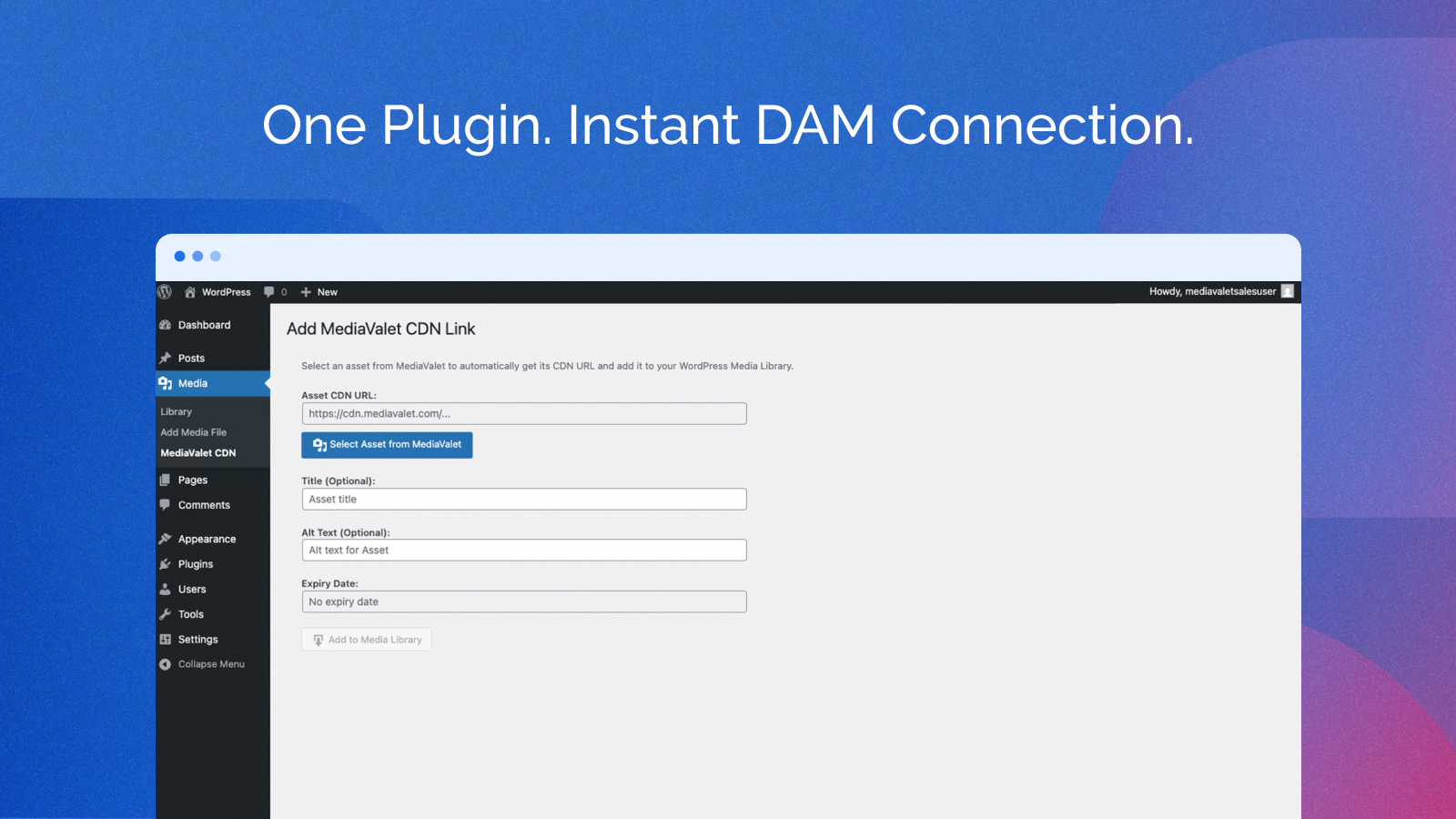
- Go to Media > MediaValet CDN in the admin sidebar
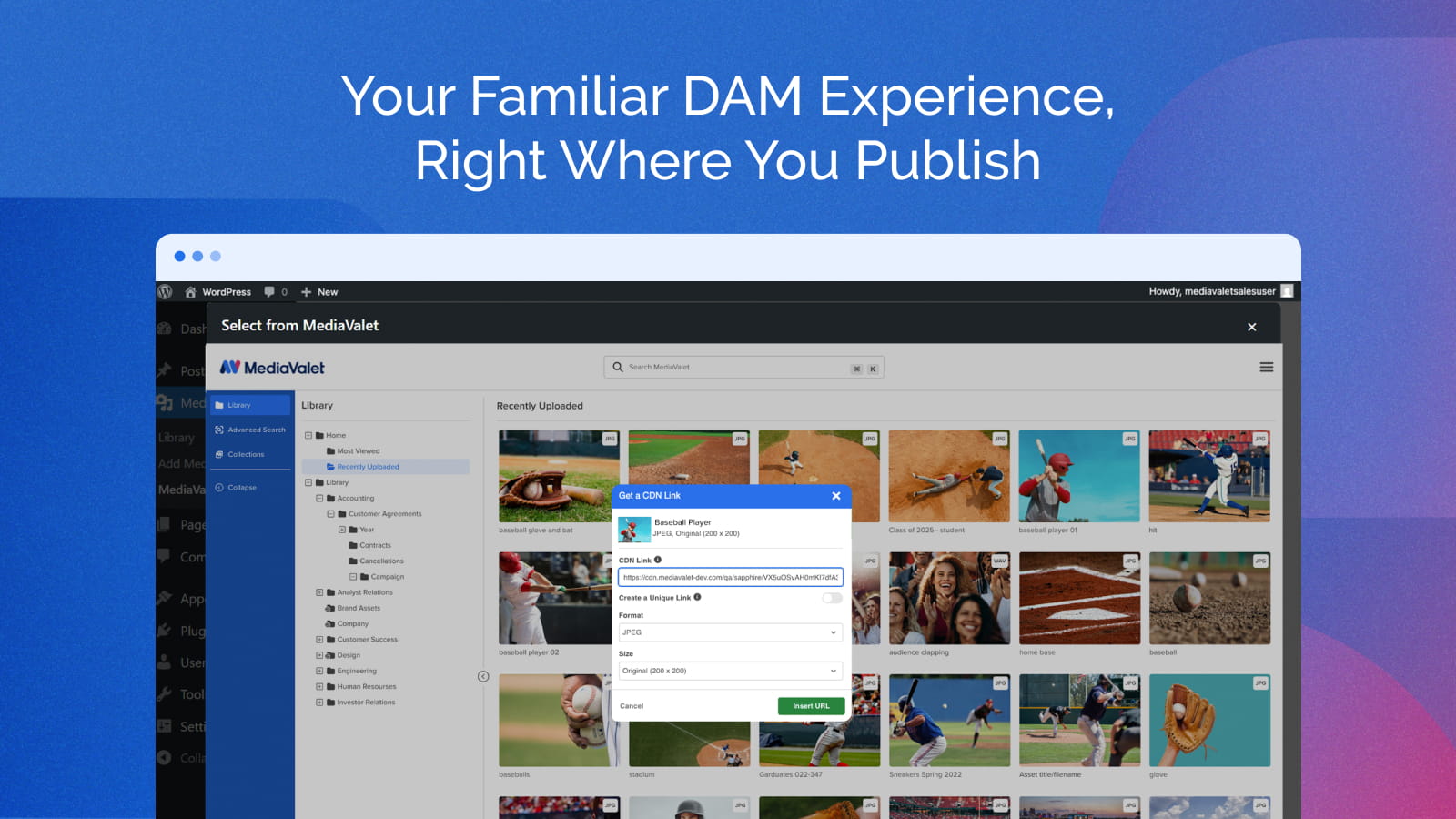
- Click Select Asset from MediaValet and login with MediaValet account
- Browse Your Library — To select an asset, navigate through your library and hover over the desired file. Click on the [+] icon (labeled “Insert as CDN Link”). This will open the Get CDN Link popup. From there, choose the required format and select the appropriate size. Finally, click on “Insert CDN Link” to complete the process.
- The CDN URL, title, alt text, and expiry date are filled in automatically
- Optionally edit the title and alt text
- Click Add to Media Library — the asset is added to Library in WordPress and served via CDN
2. Insert assets in the Editor
- Open or create a post/page using the Editor
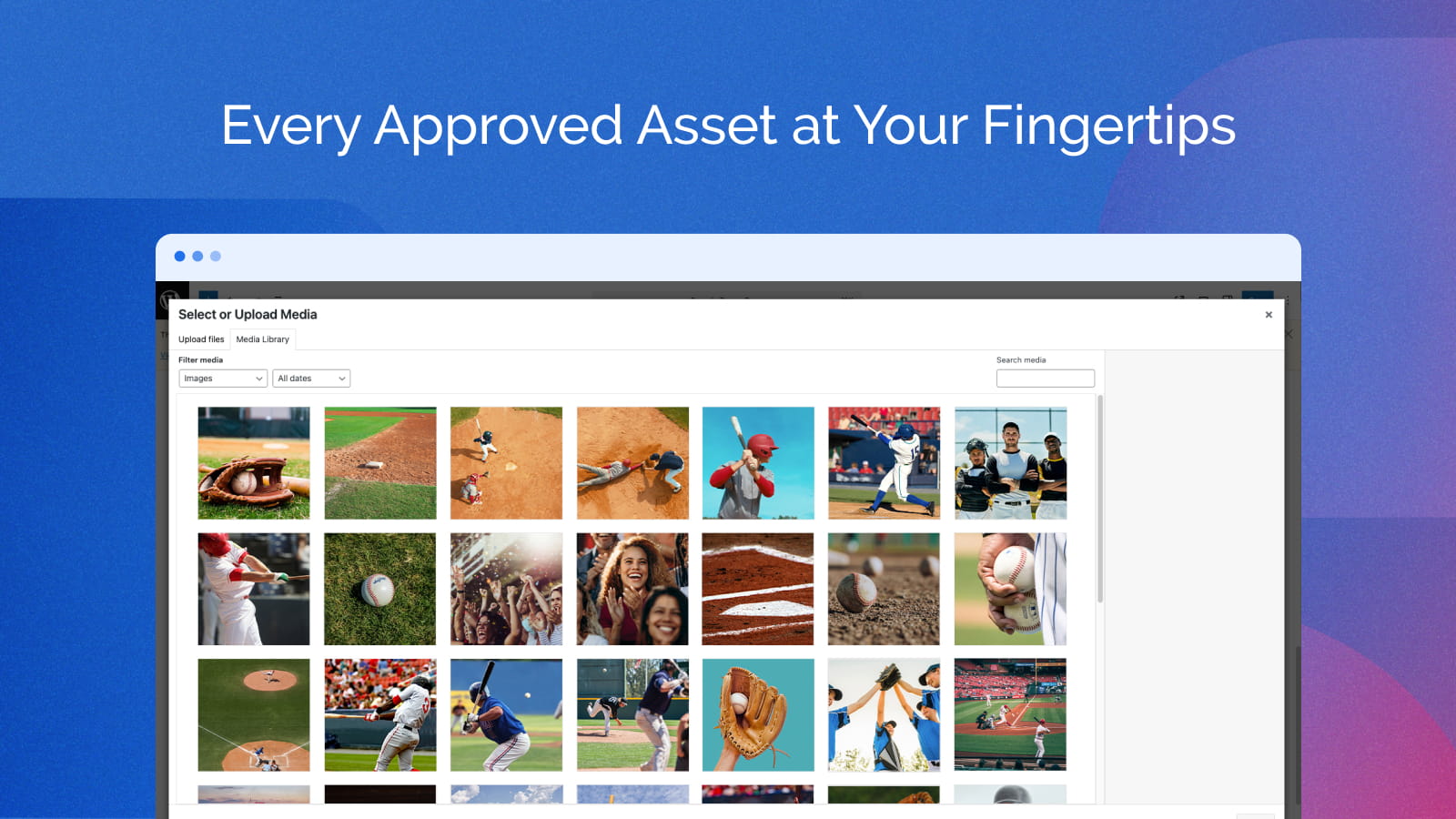
- Choose the file from MediaLibrary which was uploaded from MediaValet to WordPress.
- The asset is inserted into your post
3. Manage CDN assets in Media Library
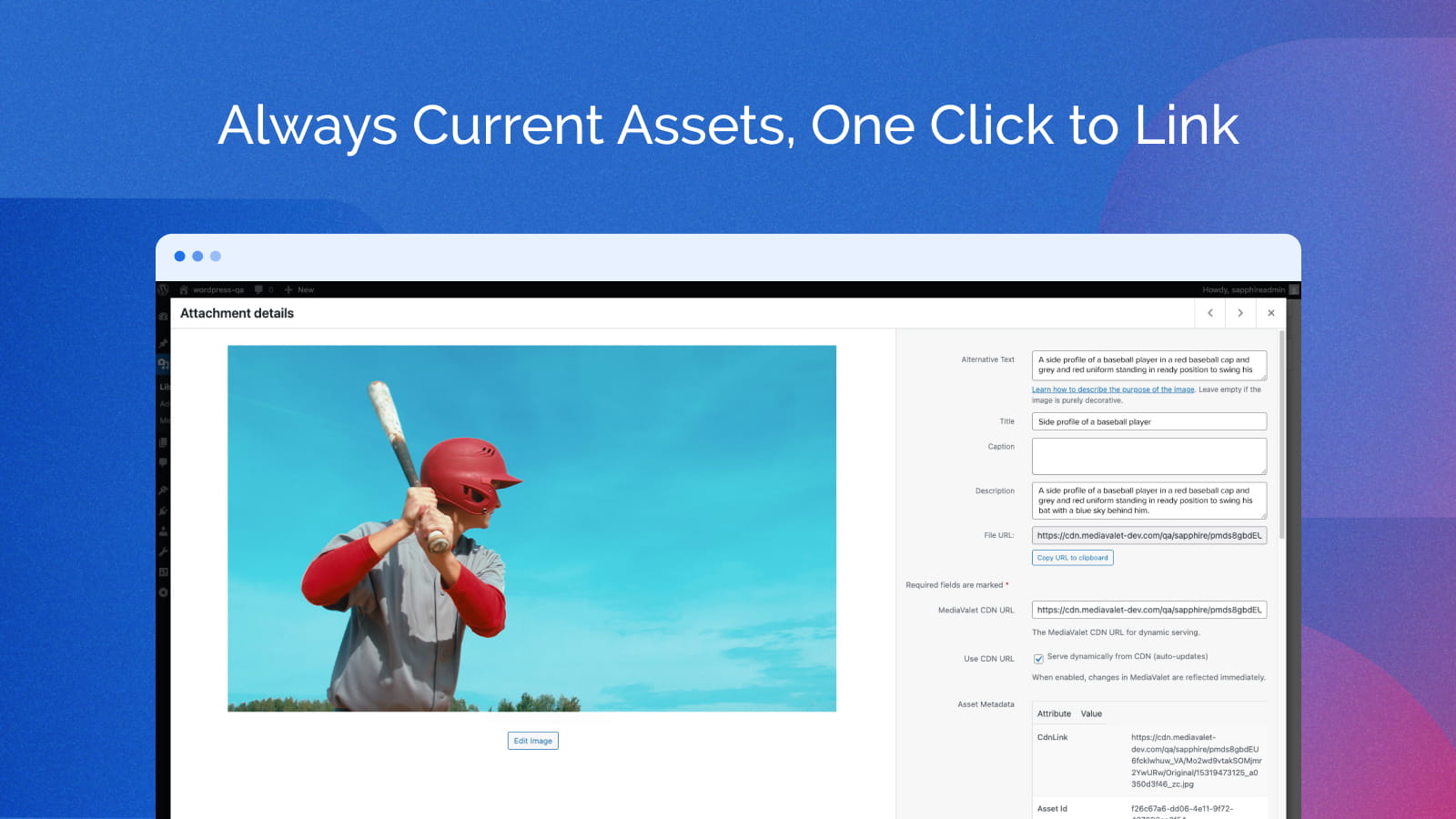
After inserting a CDN asset you can manage it from Media > Library:
- Use CDN URL toggle — switch between serving the file from MediaValet CDN (dynamic) or a local WordPress copy (static)
- CDN URL field — view or edit the CDN URL directly
- Re-sync from CDN — re-download the latest version of the asset from MediaValet
4. Work with MediaValet videos
Videos behave like any other MediaValet asset, with playback handled for you:
- Select a video in the MediaValet picker and choose the playback options you want (autoplay, mute, loop, hide controls, or the background preset) while generating the link
- Click Add to Media Library — the video is added along with its MediaValet preview frame, which is used as the Media Library thumbnail and as the video poster image
- Insert the video into a post or page using the standard WordPress video block or
[video]shortcode
Your playback settings are applied wherever the video renders — the Media Library preview, the editor, and the published page. Two rules are enforced automatically, because browsers require them:
- Autoplay always plays muted — browsers block unmuted autoplay
- Hiding the player controls also turns on autoplay, so the video never appears as a frozen still with no way to start it
When the player’s own controls are hidden, a small Stop / Unmute overlay appears on hover so visitors still have a way to silence or stop the video.
Support
For help with installation or configuration, visit our support resources:
- Support Page: MediaValet WordPress Plugin Guide
- Email: support@mediavalet.com
- WordPress.org Forum: Plugin Support Forum
Screenshots
Installation
Method 1: Install directly from WordPress Admin (Recommended)
- Log in to your WordPress admin panel at
https://yourdomain.com/wp-admin - Navigate to Plugins Add New
- In the search bar (top right), type MediaValet
- Locate the MediaValet – Digital Asset Management for WordPress plugin and click Install Now
- Once installed, click Activate
Method 2: Manual Upload
- Download the plugin zip from the WordPress Plugin Directory
- In your WordPress admin, navigate to Plugins Add New
- Click Upload Plugin at the top of the page
- Click Choose File, select the downloaded
.zipfile, and click Install Now - Once installed, click Activate Plugin
After Activation
- Navigate to Media MediaValet CDN in the admin sidebar
- Click Select Asset from MediaValet and log in with your MediaValet account
- Browse your library, select an asset, and click Add to Media Library
Note: No API keys or OAuth credentials are required. Authentication is handled automatically via your MediaValet account.
FAQ
-
Do I need a MediaValet account?
-
Yes. You need an active MediaValet account to browse and insert assets.
-
How does CDN serving work?
-
When “Use CDN URL” is enabled for an asset, images are served directly from the MediaValet CDN. Any updates to the asset in MediaValet are automatically reflected in WordPress without re-uploading.
-
Can I switch between CDN and local serving?
-
Yes. Each asset has a “Use CDN URL” toggle in the Media Library attachment editor. You can switch at any time.
-
How do I re-sync an asset from CDN?
-
In Media Library, click on the asset and use the “Re-sync from CDN” button to download the latest version from MediaValet.
-
Where do I set video playback options such as autoplay or loop?
-
Choose them in the MediaValet asset picker when you generate the link. The settings travel with the asset and are applied automatically when the video is previewed in the Media Library and rendered in your posts and pages — there is nothing extra to configure in WordPress.
-
Why does my autoplaying video have no sound?
-
Browsers block autoplay with sound, so any video set to autoplay is played muted. If the player controls are visible, visitors can unmute it themselves; if the controls are hidden, use the “Unmute” button in the overlay that appears on hover.
Reviews
There are no reviews for this plugin.
Contributors & Developers
“MediaValet – Your Digital Asset Management (DAM)” is open source software. The following people have contributed to this plugin.
Contributors

Translate “MediaValet – Your Digital Asset Management (DAM)” into your language.
Interested in development?
Browse the code, check out the SVN repository, or subscribe to the development log by RSS.
Changelog
1.0.6
Unified endpoint
* Change: Minor enhancements
1.0.5
Video transformations in the Media Library and in posts
- Feature: video playback settings — autoplay, mute, loop, hide controls, and the background preset — are now carried through from the MediaValet link and applied wherever the video renders in WordPress
- Feature: videos inserted into posts and pages honour those settings in both the Gutenberg video block and the [video] shortcode — MediaValet embed links render through the MediaValet player, direct CDN links render as a native HTML5 video
- Feature: autoplay is automatically muted, and hiding the player controls automatically enables playback, so a video is never left as a still frame the visitor cannot start
- Feature: a Stop / Unmute overlay appears on hover for videos whose native player controls are hidden
- Feature: the MediaValet preview frame is now used as the video’s poster image in posts and as its thumbnail in the Media Library grid and list views, replacing the generic file-type icon
- Fix: fatal error when rendering MediaValet embed videos (Shaka player) via the [video] shortcode or Gutenberg video block
- Fix: Media Library “Attachment Details” modal now shows a playable player instead of a “Format(s) not supported” error for MediaValet embed videos
- Fix: closing the Attachment Details modal now stops an embed video, instead of leaving it playing audio in the background
- Fix: portrait videos no longer stretch far past the viewport in the Attachment Details preview, the editor, or the published page
- Fix: asset picker postMessage origin check now correctly matches when the Unify UI is fronted by a Cloudflare Worker
1.0.4
- Fix: switched Unify UI endpoint to production (wordpress-app.mediavalet.com)
1.0.3
- Feature: CDN images now support auto-optimized format selection, crop, and resize transformations via MediaValet CDN
- Feature: unsupported audio formats (WMA, AIFF, APE, RealAudio) now show a clear, actionable error message instead of failing silently
- Fix: attachment details panel in Media Library now only shows MediaValet fields for MediaValet assets — locally uploaded files are unaffected
- Fix: filename is now correctly populated in the Media Library panel for CDN-only assets (was blank)
- Fix: broken CDN image now shows a filename notice matching standard WordPress behaviour instead of clearing alt text to empty
- Fix: CDN re-sync now correctly handles deleted/broken asset signals
- Fix: Escape key now closes the picker modal; success dialog Escape continues to work after picker is closed
- Fix: “Add to Media Library” button icon alignment corrected
1.0.2
- Fix: picker spinner now appears immediately on click in all browsers including incognito/private mode
- Fix: iframe loads after modal renders — spinner is always visible before network activity starts
- Fix: re-opening picker after first load is instant with no redundant reload
1.0.1
- Performance: removed unnecessary CDN HEAD request on asset insert, significantly reducing insert time
- Fix: spinner now appears immediately when adding asset to Media Library
1.0.0
- Initial release
- MediaValet asset browser in WordPress editor
- Basic asset insertion into posts and pages