

Description
Some products cost you more to sell than others. A bottle deposit, an eco levy, a handling charge on an oversized item, gift wrapping on one line but not the rest. Raising the product price hides that cost. A global cart fee charges it to everyone.
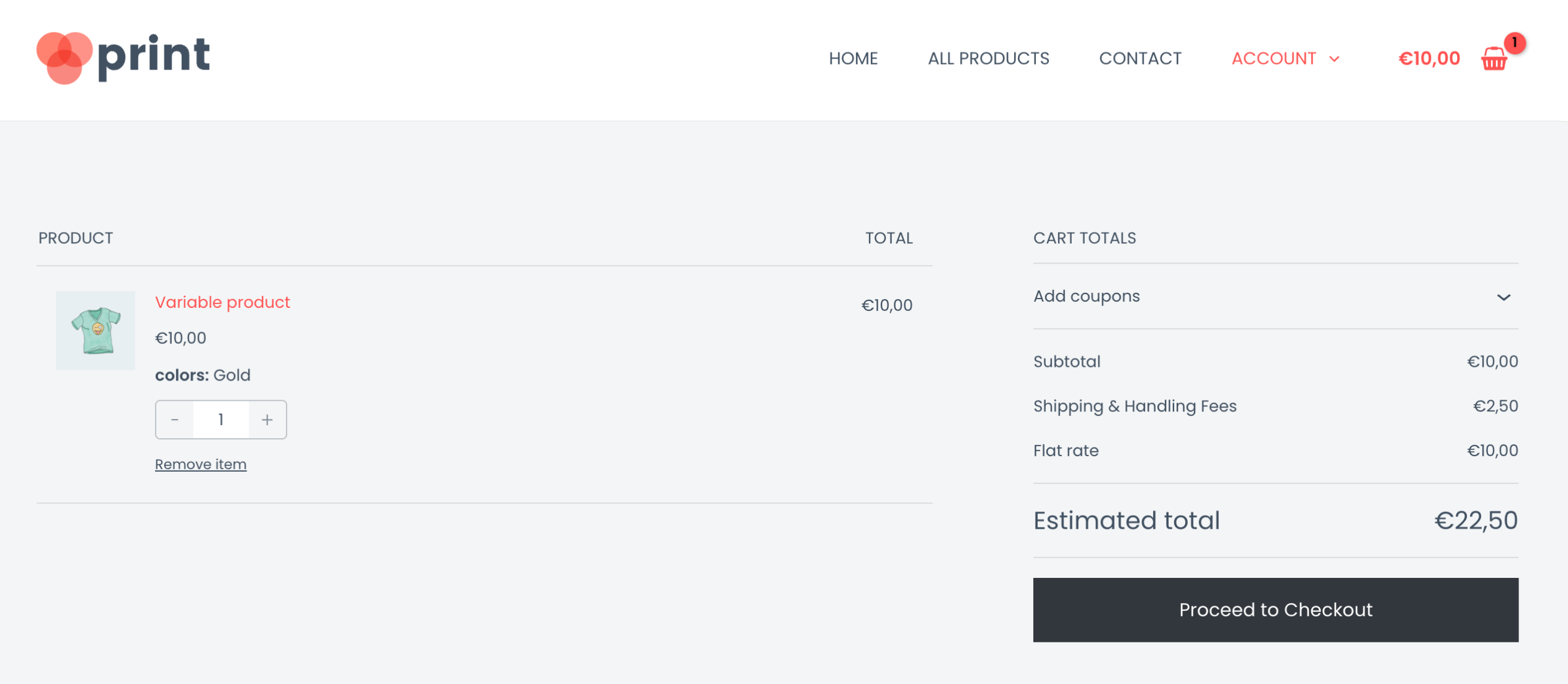
Product Fees for WooCommerce puts the fee where it belongs, on the product. You set it once on the product or variation, and WooCommerce adds it to the order as a proper fee line whenever that item is in the cart. Buy two, and it can charge twice. Add tax, and it behaves like the rest of your store.
What you can charge for
- Environmental, recycling, or eco levies
- Bottle and container deposits
- Gift wrapping, packaging, or handling
- Age-verification and compliance charges
- Per-item service, setup, or customization fees
How the fee is calculated
- Fixed amount, percentage of the product price, or both together. A flat handling charge plus a percentage levy on the same product is a single setup, not a workaround.
- Multiplied by quantity, or not. Turn it on for per-item charges like a deposit. Leave it off for a once-per-order charge like gift wrapping.
- Taxed the way you want. A fee can be taxable, non-taxable, or inherit the product’s tax class, so your totals stay consistent with the rest of the store.
- Combined or kept separate. Fees sharing a name can roll into one line at checkout or stay itemized. That is a global setting, so you decide once.
- Removable by coupon. Configure a coupon to strip product fees during a promotion, instead of setting fees to zero and remembering to put them back.
Where you set it up
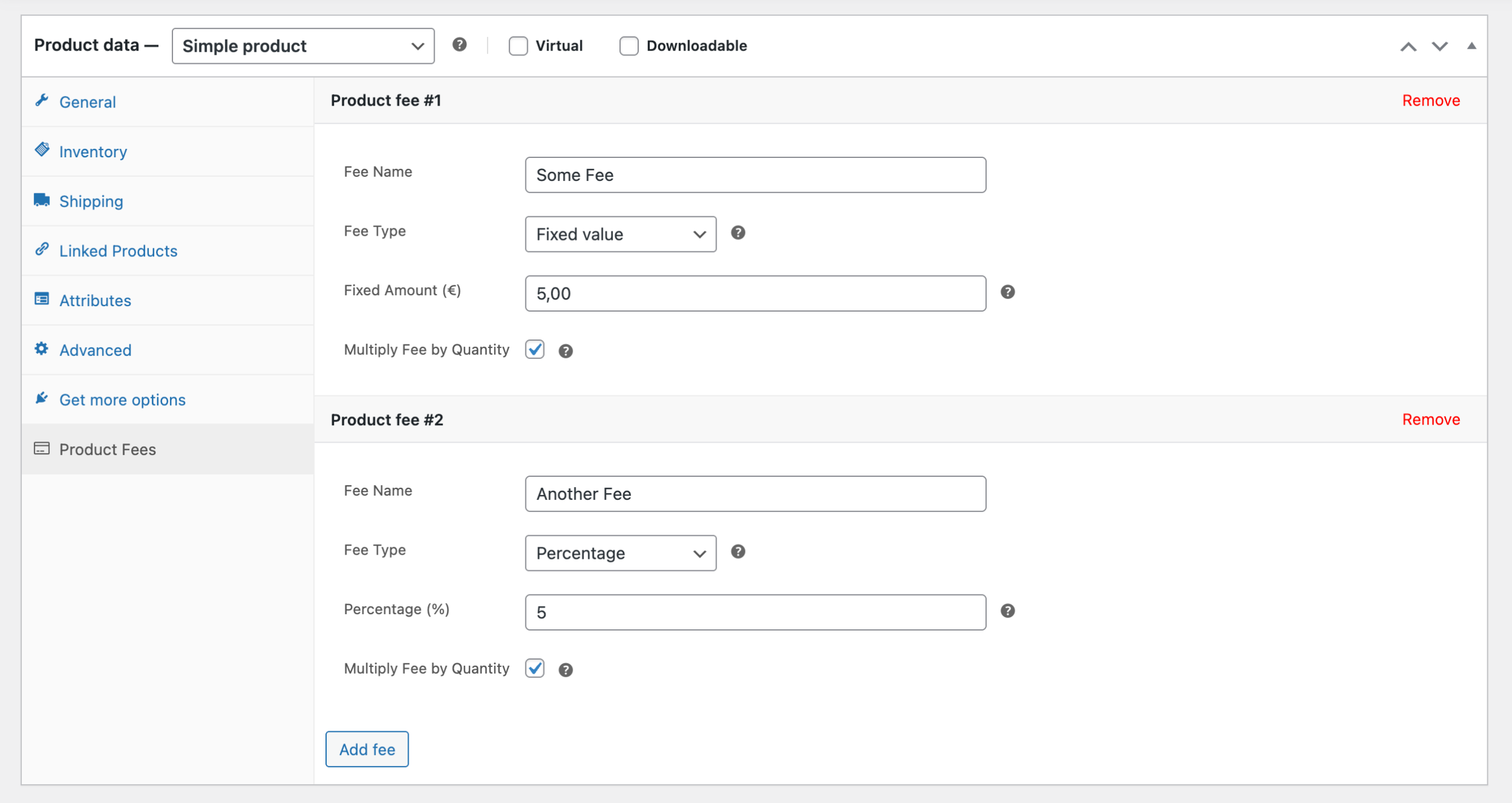
- Per product: Products, then edit the product, then Product Data, then Product Fees.
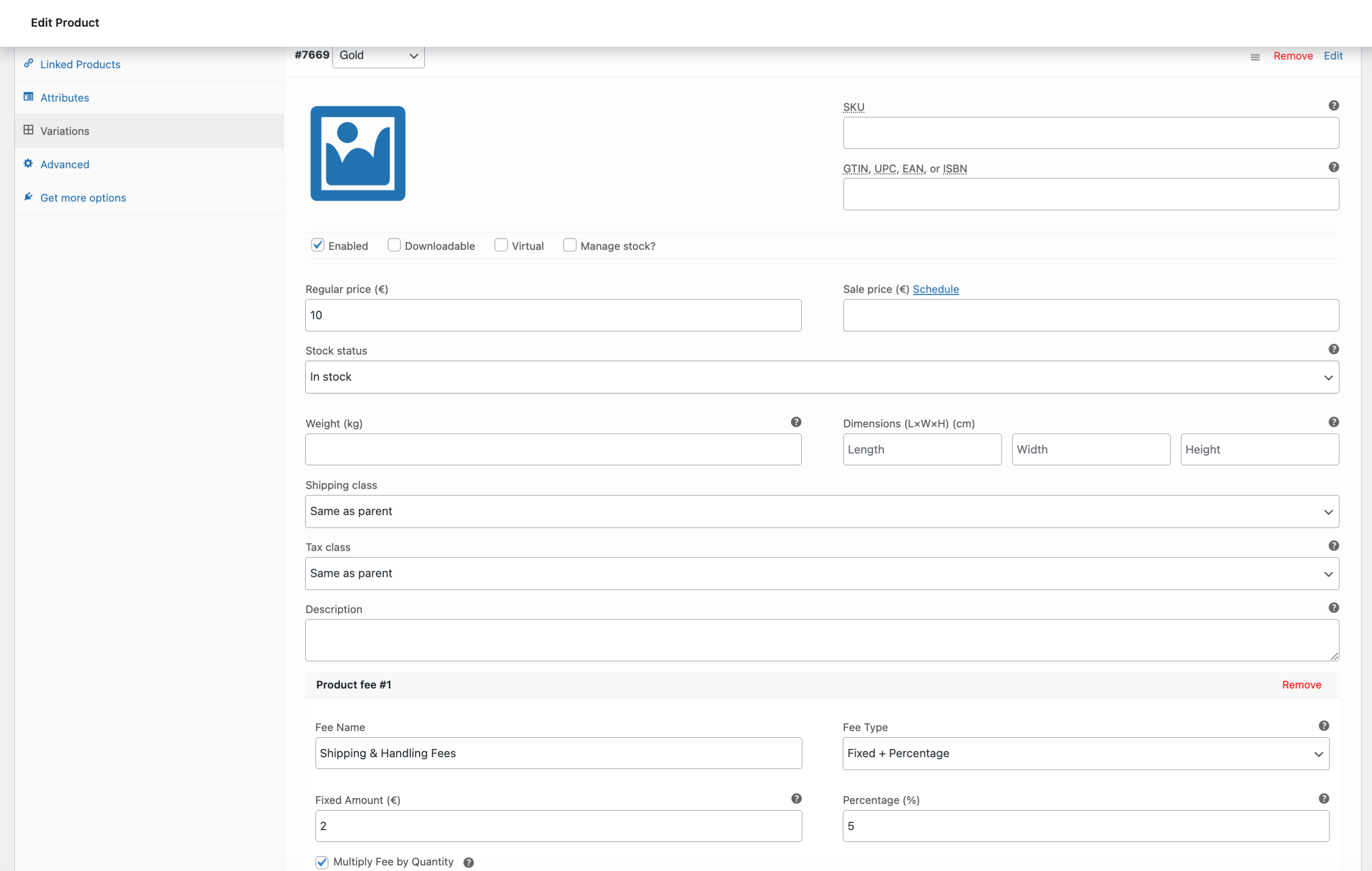
- Per variation: Products, then edit a variable product, then Variations, then Product Fees.
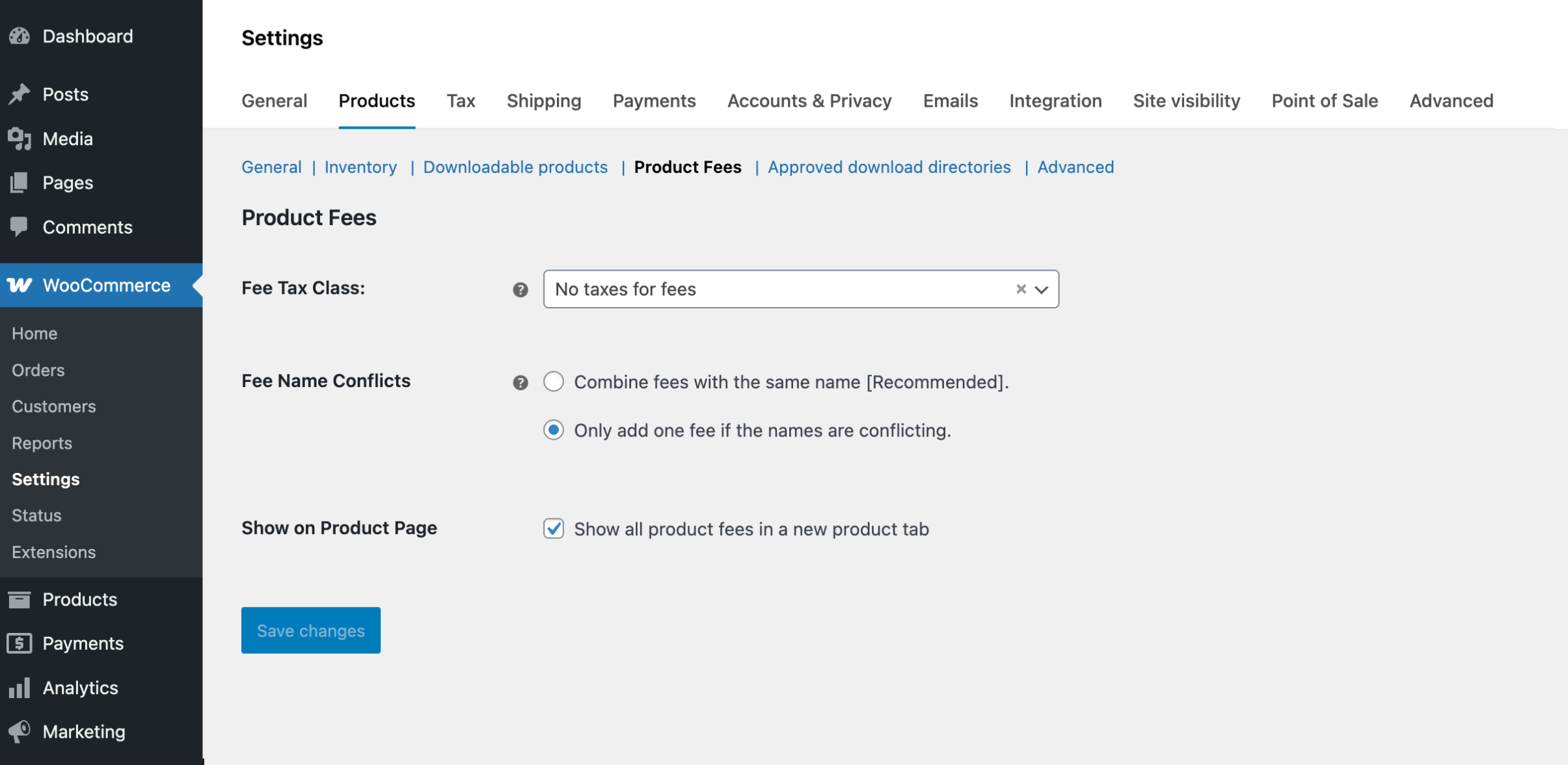
- Globally: WooCommerce, then Settings, then Products, then Product Fees. This is where you control tax behavior, whether same-named fees combine, and whether the Product Fees tab appears on the product page.
No surprises at checkout
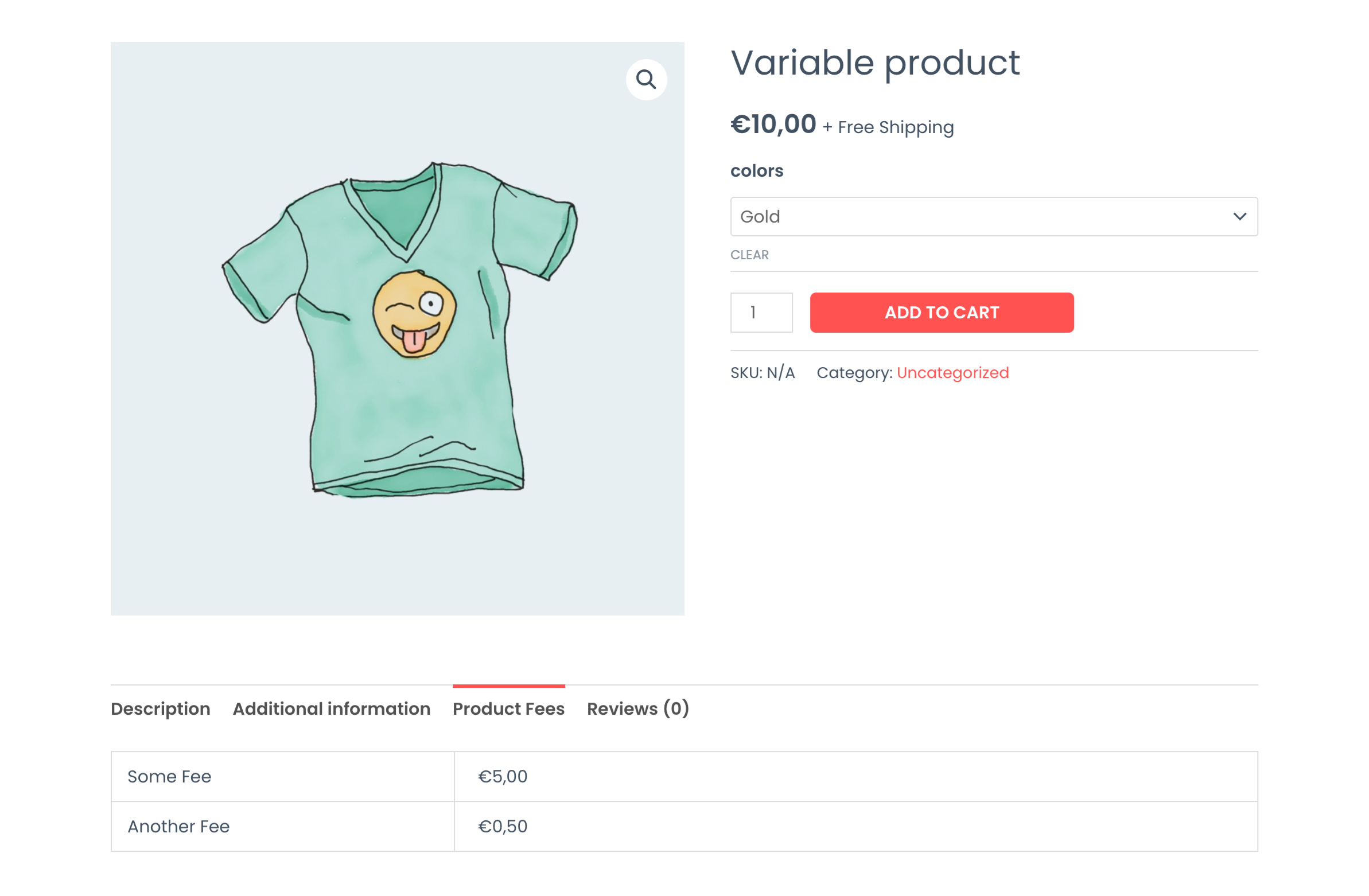
Turn on the optional Product Fees tab and the fee is stated on the product page, before anyone adds to cart. Customers who see a charge coming do not abandon at the totals line, and you get fewer “what is this extra amount” support emails.
Works with your existing catalog workflow
Fees are supported by WooCommerce’s own product Import and Export, so you can set them across hundreds of products in a spreadsheet rather than one product at a time.
What it deliberately does not do
This plugin charges fees based on the product, and nothing else. There are no conditional rules for country, user role, cart total, shipping method, or payment gateway. If you need a fee that changes depending on who is buying or where they are, you need a rules engine, and this is not one.
That narrowness is the point. The settings screen is short, there is nothing to learn, and there is no rule evaluation running on every cart calculation.
For developers
Filters are available to adjust fee labels, amounts, tax classes, and aggregation behavior before fees are added to the cart. Fee data can be filtered per cart item, with access to quantity, price, product ID, and variation ID, so you can vary a fee in code where the settings screen stops. Action hooks let you add your own controls to the admin UI.
Admin saves are nonce-protected, and the plugin is translation-ready.
Requirements
- WordPress 6.0 or higher
- WooCommerce 9.0 or higher
- PHP 7.4 or higher
Screenshots
Installation
Automatic installation
- Go to Plugins, then Add New.
- Search for Product Fees for WooCommerce.
- Click Install Now, then Activate.
Manual installation
- Download the plugin ZIP.
- Go to Plugins, then Add New, then Upload Plugin.
- Upload the ZIP and activate.
First fee in two minutes
- Edit any product in WooCommerce.
- Open Product Data, then Product Fees.
- Add a fee name and an amount, either fixed, percentage, or both.
- Choose whether it multiplies by quantity and how it should be taxed.
- Save. The fee is applied automatically whenever that product is in the cart.
The fee name is what the customer sees at checkout, so write it for them. “Bottle deposit” reads better than “Fee 1”.
FAQ
-
Can I add a fee to one product instead of the whole cart?
-
Yes. That is the entire point of the plugin. Fees attach to individual products and variations rather than to the cart, so a levy on one item does not land on an order that does not contain it.
-
Can I charge a percentage of the product price?
-
Yes. You can charge a percentage, a fixed amount, or both on the same product.
-
Can a fee multiply when someone buys more than one?
-
Yes. Enable Multiply by Quantity and the fee applies per item. Leave it off and the fee is charged once regardless of quantity, which is what you usually want for something like gift wrapping.
-
Can I set different fees on different variations?
-
Yes. Fees can be set at the variation level as well as on the parent product.
-
Can customers see the fee before they reach checkout?
-
Yes. Enable the Product Fees tab in the global settings and the fee is shown on the product page.
-
Can a coupon remove the fee during a sale?
-
Yes. Coupons can be configured to remove product fees automatically, so you do not have to zero out fees for a promotion and restore them afterward.
-
How are fees taxed?
-
However you decide. A fee can be taxable, non-taxable, or inherit the product’s tax class. Tax behavior is set globally under WooCommerce, then Settings, then Products, then Product Fees.
-
I have two products with the same fee name. Will the customer see two lines?
-
Your choice. A global setting controls whether fees sharing a name combine into one line at checkout or stay itemized.
-
Can I set fees in bulk instead of product by product?
-
Yes. Fees work with WooCommerce’s built-in product Import and Export, so you can manage them in a CSV alongside the rest of your catalog.
-
Can I change a fee in code?
-
Yes. Filters cover fee labels, amounts, tax classes, and aggregation before the fee reaches the cart, and fee data can be filtered per cart item using quantity, price, product ID, or variation ID. Action hooks are available for extending the admin UI.
-
Can I charge a fee based on the customer’s country, role, or cart total?
-
No. This plugin only applies fees based on the product in the cart. Conditional rules of that kind need a dedicated rules plugin.
-
Will it work with my theme and other plugins?
-
The plugin follows WooCommerce standards for both the admin UI and the way fees are added to the cart, so it works with most themes and extensions.
Reviews
There are no reviews for this plugin.
Contributors & Developers
“Product Fees for WooCommerce” is open source software. The following people have contributed to this plugin.
Contributors
“Product Fees for WooCommerce” has been translated into 2 locales. Thank you to the translators for their contributions.
Translate “Product Fees for WooCommerce” into your language.
Interested in development?
Browse the code, check out the SVN repository, or subscribe to the development log by RSS.
Changelog
1.3.0
- Fix – Fees with similar names are no longer combined into a single fee.
- Fix – Fee names with special characters now display correctly when editing a product.
- Fix – Saving variation fees no longer resets the multiply-by-quantity option.
- Tweak – Plugin renamed to Product Fees for WooCommerce.
- Tweak – Internal code cleanup.
1.2.0
- Update – Tested with WordPress 7.0 and WooCommerce 10.9.3
1.1.0
- New – WooCommerce compatibility
1.0
- New – Initial release